
Interface Overview
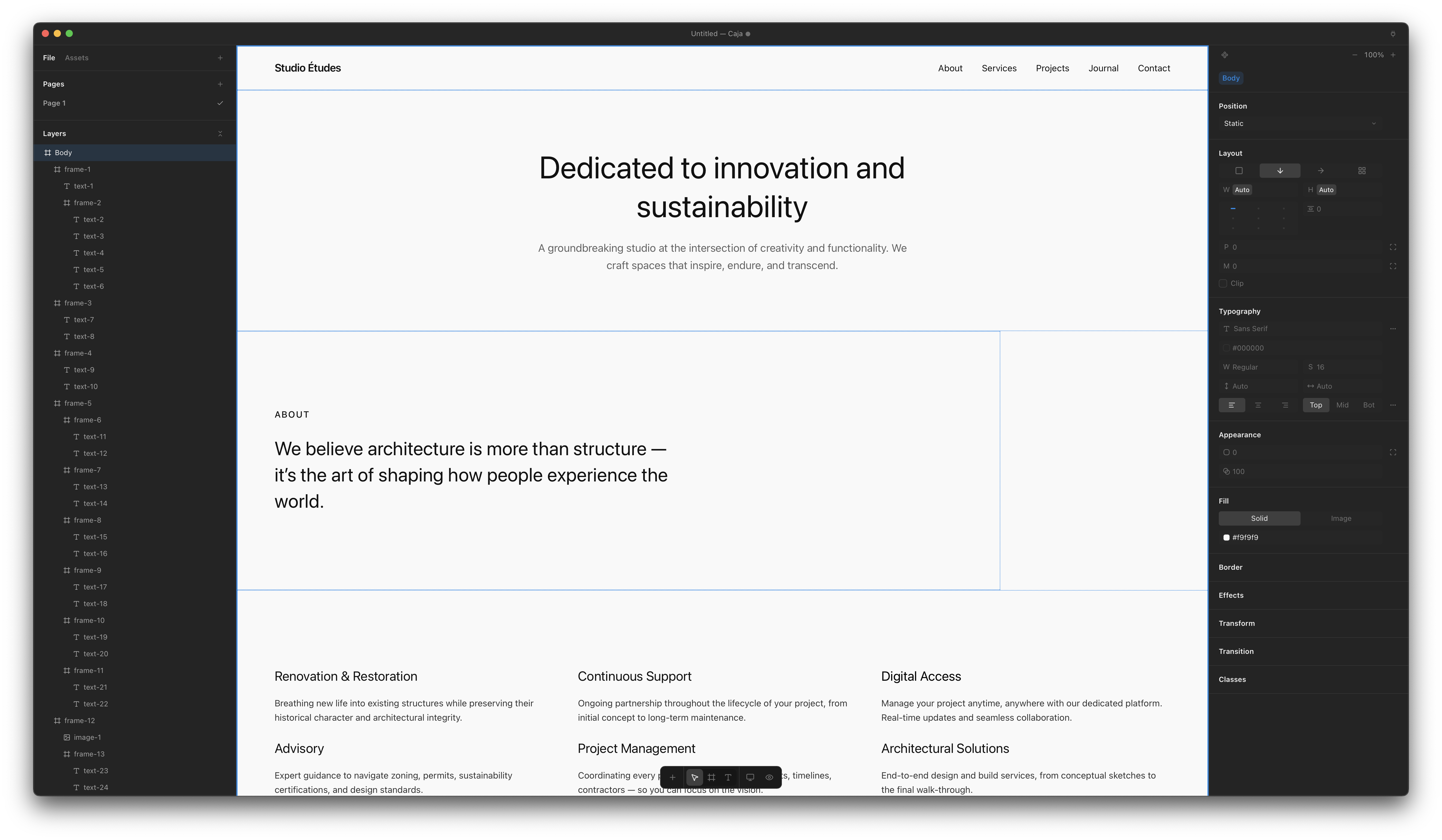
Caja uses a three-panel layout with a floating toolbar.
Menu Bar
The native macOS menu bar provides standard app controls:
- File — New, Open, Save, Save As, Export
- Edit — Undo, Redo, Cut, Copy, Paste, Delete, Select All
- Window — Minimize, Zoom, Close
The window title shows the current filename with an unsaved-changes indicator.
Title Bar
Shows the current filename with an unsaved-changes indicator. The MCP status button on the right shows connection state — click it to configure AI agent connections.
Left Panel
The left sidebar has two tabs: File and Assets.
The File tab shows the Pages section and the layer tree for the current page. The Assets tab manages reusable components with import/export support.
Canvas
The design workspace. Elements render live with Tailwind CSS. Click to select, drag to reorder, and use tools to create new elements.
Properties Panel
The right sidebar. Edit the selected element's properties — layout, size, spacing, typography, colors, borders, effects, and more. Every value maps to a Tailwind class.
Toolbar
Floating bar at the bottom of the canvas. Quick access to canvas tools, element creation, viewport breakpoints, and preview mode.
View Menu
The View menu in the menu bar provides:
- Left Panel (
⌘1) / Right Panel (⌘2) — Toggle panel visibility - Spacing Grid — Constrain spacing values to a grid: Off (all tokens available), 4px (multiples of 4), or 8px (multiples of 8). When active, spacing dropdowns filter out non-grid values, making it easier to maintain consistent spacing.
- Auto-Style New Frames — When enabled (default: on), newly created box frames get a fixed height and a random background color, making them immediately visible on the canvas. Disable this for blank unstyled frames.
- Collapse All Layers / Expand All Layers — Toggle the tree panel
- Reset Interface to Default — Reset panel widths and preferences
- Enter Full Screen — Toggle fullscreen mode
Panel Visibility
Toggle panels with keyboard shortcuts:
| Shortcut | Action |
|---|---|
⌘1 | Toggle Left Panel |
⌘2 | Toggle Properties Panel |
Both panels can be resized by dragging their edges.